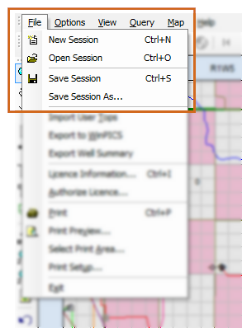
View an image of the session menu options
View an image of the session menu options
Learn more about sessions in GeoVista
Here's how you use the New Session, Open Session, Save Session, and Save Session As... menu options:
| File Menu Option | Description |
|---|---|
| New Session | Select this option to start with a blank map. GeoVista will remove all result lists, map views, and queries from the current session. |
| Open Session |
Select this option to open the Open a Saved Session dialog box, where you can open a previously saved GeoVista session. The dialog box seeks out and displays .gvs session files only. |
| Save Session | Select this option to save your current GeoVista session. If it's the first time you're saving the session, you'll open the Save Current Session dialog box, where you give your session a filename and select where you want to save it on your local machine or network. |
| Save Session As... | Select this option to save a copy of the current GeoVista session to a new file. You can also use the Save Session As... option to rename a GeoVista session file or change the location of where you save the file. |
What shortcut keys can I use for session options?
What do you want to do?