Remove Layer
Removes this layer from the map (equivalent to clearing the layer's check box). You can only remove user-created layers (For example, result sets, user-drawn objects, and shape files).
Add Folder
Creates a new folder in the Layer Manager tab called New Folder. Follow these steps to give the folder a new name:
- Click once on the folder name to select it.
- Click once more to open the name in edit mode.
- Type in the folder’s new name.
Remove Folder
Deletes the currently selected folder, as long as that folder is empty. If a folder still contains layers, you first need to move those objects to another folder.
Restore All Defaults
Sets all layer settings back to default values. This will remove any property changes you made.
Restore Default Order
Sets all layers back to the default order.  Show me an image of the default layer manager folders, with a result sets folder.
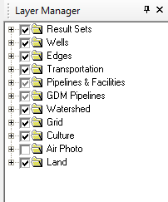
- If you created a result set (or sets), GeoVista creates and puts them in a Result Sets folder at the top Layer Manager order. When you select Restore Default Order, GeoVista restores the default order of the folders in the Layer Manager. If you moved a result set from the Result Sets folder to another folder, and you select Restore Default Order, the result set will stay in that folder, but move to the top of the layer order.
Zooms so that all the objects in the selected layer are within view on the map.
Opens the Bubble Map Properties dialog box, where you can set the bubble map properties for the selected layer.
Opens the Layer Name Properties dialog box, where you can configure how this layer appears in your map.