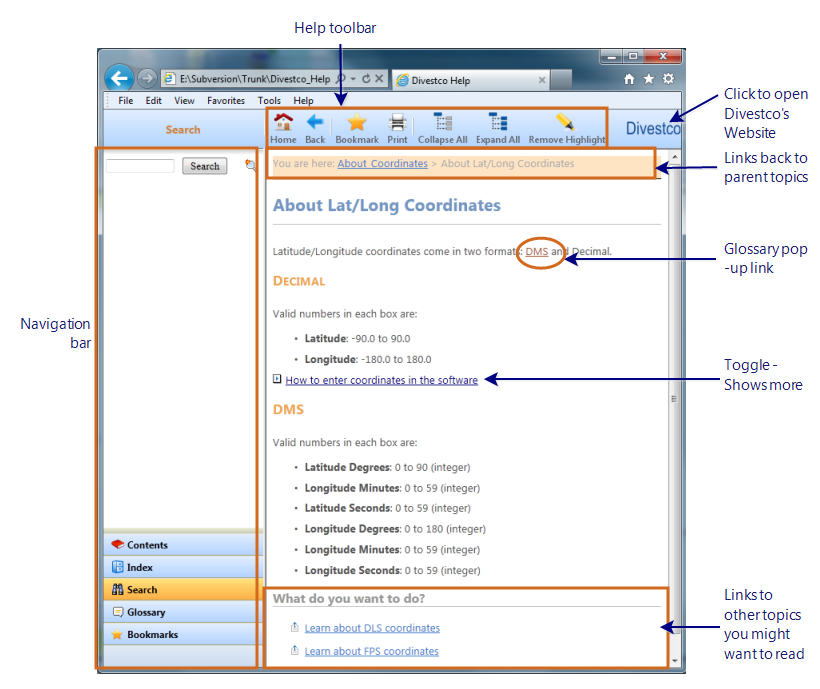
You may not be aware of all the features in this help file that make it easier for you to find the information you need. We've provided the following standard features, as well as some enhancements to make your help experience more convenient and intuitive.
 Links like this - A toggle stores images or additional information inside a link that you can click to open or close the information as you need to read it, saving you from having to search through unnecessary text.
 in the toolbar of the help file to return to the page you just left.
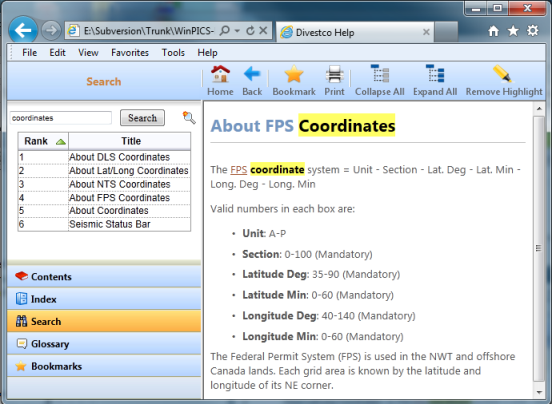
Our help files include a new, updated search feature that returns more reliable and accurate results, and ranks the results by importance. Tell me how to use the search feature
The following buttons appear in the toolbar at the top of the help window.

| Button | Description |
|---|---|

|
Takes you to the first page of the help file. |
|
|
Takes you back to the last help page you viewed. |

|
Saves the page you're viewing as a link in the Bookmarks pane, so you can quickly access that page again in the future. |

|
Prints the current topic to your default printer. |

|
Topics with toggles envelope information to make it easier for you to see the specific information you want to read about. If you prefer to open all the toggles on a page to display all the information at once, click this button to open all the toggles. |

|
If you've opened several toggles on a page, and you want to close them all up to clean up your reading area, you can click this button to close all the toggles at the same time. |

|
When you search the help file, the words you wanted to find appear highlighted in each topic. This highlighting helps you to quickly find what you were looking for. If you want to remove the highlighting, click this button. |

|
Located in the right top corner of the help file; click this icon to open the Divestco Webpage. |